
Infrastructure Based Licensing Rule
- Click
 > Create APM License Rule.
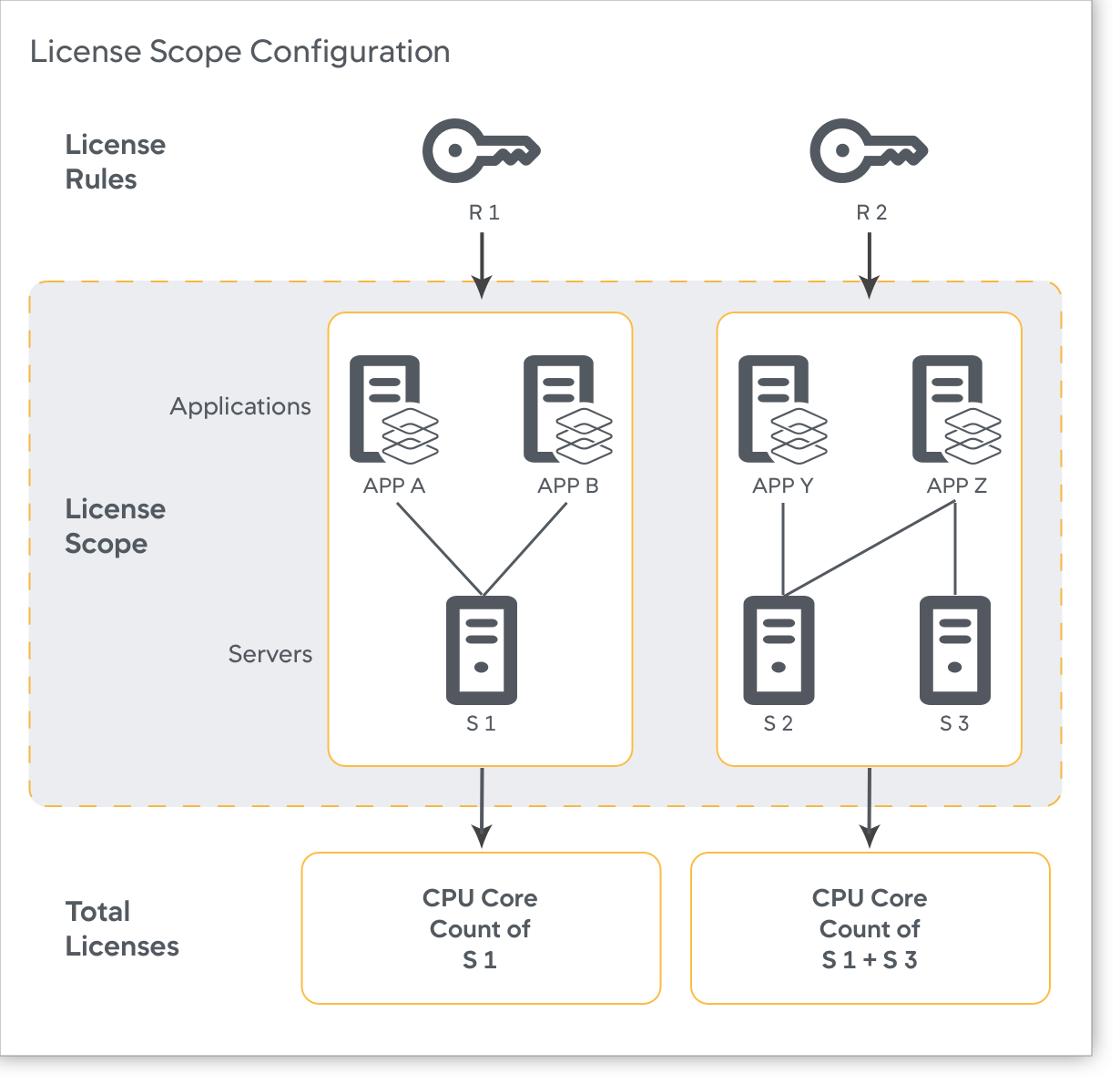
This diagram depicts an example of a scope configuration for IBL.
Machine and Cluster Agent License Prioritization
With Infrastructure-based Licenses (IBL), you can activate license rules to preserve license usage for a Cluster Agent in situations where the system cannot detect its vCPU details. When a Cluster Agent lacks vCPU information, it will temporarily be registered with 0 license units to report the data instead of rejecting them for a few minutes before they start consuming the fallback license units.
Use the PRIORITIZE MACHINE AND CLUSTER AGENT LEASE toggle when you are running a large cluster with several working nodes. If a node using the Cluster Agent fails, then the other app agents on the cluster may use up all the licenses available in the infrastructure-based license pool. When the node recovers and the Cluster Agent tries to get a license lease, there might not be enough available, which will result in overages. If the Machine/Cluster Agent license prioritization setting is activated, one of the other agents will release licenses to allow cluster agents to use them if there are not enough licenses available.
To enable the PRIORITIZE MACHINE AND CLUSTER AGENT LEASE option:
- Go to Settings
> License > License Rules.
- Click the PRIORITIZE MACHINE AND CLUSTER AGENT LEASE toggle.
- Click Done.
Allow Agents to Temporarily Register Without License Units
To conserve license consumption by agents when the system cannot detect its vCPU information because of asynchronous nature of reported vCPU information, AppDynamics enables the delayed fallback mode by default. This mode allows all the agents associated with the license rule to temporarily register with zero license units instead of rejecting them for a few minutes before they start consuming fallback units. This approach prevents the license usage spikes and loss of data. If the vCPU count is still unknown after 10 minutes, the agents start consuming the fallback license units.
On the Create APM License Rule page, the delayed fallback mode is represented by the the ALLOW AGENTS TO TEMPORARILY REGISTER WITH 0 UNITS ON HOSTS LACKING vCPU INFORMATION toggle. This toggle is always ON.
Best Practices to Create License Rules
- When creating license rules, you should follow consistent criteria for selecting which applications belong to a rule. We recommend:
- If you want a rule to contain multiple applications, then group applications by business unit.
- If you want to view individual application usage, then select only one application per rule.
- For each rule you create, a new access key is generated, and the agents under that rule are authenticated with that generated key. Make sure to update your agent to use this new access key and restart the agent.
- Make sure the selected applications and servers on each rule are an exclusive list and are not part of multiple rules. This structuring helps with managing chargebacks effectively.
- If you choose not to create any rules, then your license allocation follows the default rule, which allows all applications and servers to equally consume each license.
- To simplify license reporting in a cluster (containerized environment), we recommend that all applications and agents use the same license key when using license rules.
- When configuring rules, you can allocate more units than you were originally provisioned by Splunk AppDynamics. Over-provisioning units buffer your unit allocation and are useful when the exact number of license units for the list of applications and servers for the rule are unknown. Although the allocation on the rule is unbounded, Splunk AppDynamics limits your unit usage according to the number of licenses you purchased.