Infrastructure Based Licensing Rule

To create an infrastructure- based licensing rule:
  1. Click User Profile > License > License Rules.
  2. Click Create > Create APM License Rule.
  3. In LICENSE RULE NAME, enter the name of your rule.
  4. In LICENSE ALLOCATION, enter the number of units for each module type that this rule allocates.
  5. In the Application Scope tab, select + Specified Applications and select the applications from the list on which you want to apply the license rule. If you don't apply any application scope, the license rule applies to all the applications.
    Note:
    • Only the agents that report to the selected applications can consume the license units allocated by this rule. You can select one or more applications from the list.

    • You can specify a matching criteria to select the applications. If you select Dynamic and then Include dynamic ones, all the dynamic application names matching your criteria are selected for your license rule.

    • The agents reporting to the non-matching applications are rejected and cannot report data.

    • You can also add un-instrumented applications to the rule in Application Scope so that when you install the agents to instrument these un-monitored applications, they will be allowed to consume licenses defined in this rule.

    • You can select up to 100 applications to assign to a rule.

  6. In the Server Scope tab, select + Specified Servers and select the servers from the list on which you want to apply the license rule. If you don't apply any server scope, the license rule applies to all the servers.
    Note:
    • Only the agents deployed on the selected servers can consume the license units allocated by this rule. You can select one or more servers from the list.

    • You can specify a matching criteria to select the servers. If you select Dynamic and then Include dynamic ones, all the dynamic server names matching your criteria are selected for your license rule.

    • The agents reporting to the non-matching servers are rejected and cannot report data.

    • You can also add un-monitored machines in Server Scope so that when you install the agents to instrument these un-monitored servers, they will be allowed to consume licenses defined in this rule.

  7. Click Done to create the license rule.

This diagram depicts an example of a scope configuration for IBL.
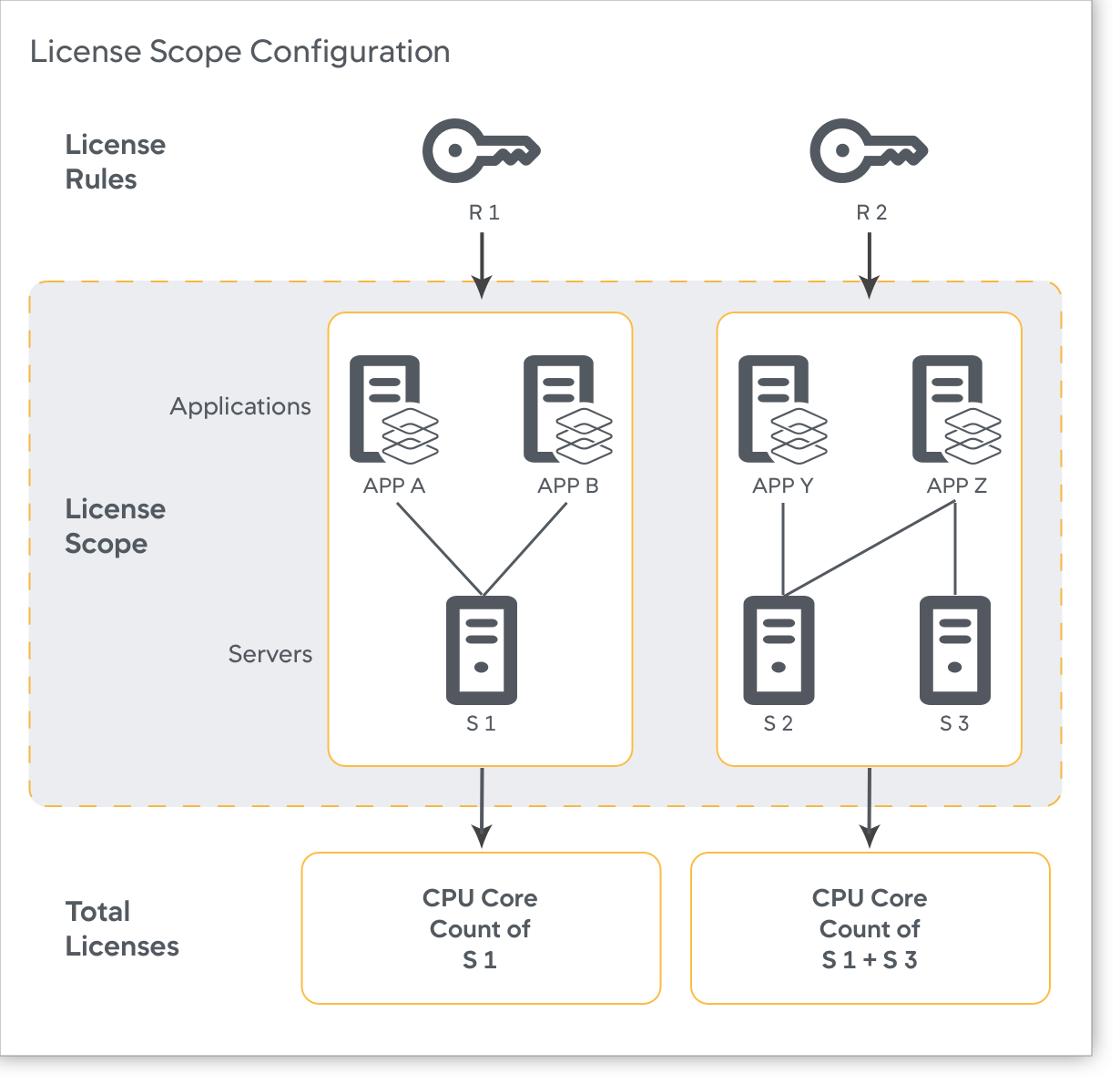
License Scope Configuration

マシンおよびクラスタエージェントのライセンスの優先順位付け

注: マシンおよびクラスタエージェントのライセンスの優先順位付け設定は、21.11.0 以降のコントローラのインフラストラクチャベースのライセンスで使用できます。

インフラストラクチャベース ライセンス(IBL)を使用すると、ライセンスルールをアクティブ化して、システムが vCPU の詳細を検出できない場合に、クラスタエージェントのライセンス使用を温存することができます。クラスタエージェントに vCPU 情報がない場合、拒否されて登録されないため、ライセンスの消費が防止されます。この機能により、エージェントのライセンスの使用を回避できます。

たとえば、複数の動作中のノードがある大規模なクラスタを実行する場合はこの設定を使用します。クラスタエージェントを使用しているノードで障害が発生すると、クラスタ上の他のアプリケーション エージェントが、インフラストラクチャベースのライセンスプールで使用可能なすべてのライセンスを使い果たす可能性があります。ノードが回復し、クラスタエージェントがライセンスリースを取得しようとすると、使用可能なライセンスが不足し、ライセンス超過が発生する可能性があります。マシン/クラスタエージェントのライセンスの優先順位付け設定がアクティブになっていると、使用可能なライセンスが不足している場合に他のエージェントの 1 つがライセンスを解放し、クラスタエージェントがそれらを使用できるようにします。[Prioritize Machine/Cluster Agent License Lease] 設定を有効にするには、次の手順を実行します。

  1. [Settings設定 > License > License Rules] に移動します。
  2. マシンおよびクラスタエージェントのリースの優先順位付け
  3. [Done] をクリックします。

エージェントを登録する前の vCPU 情報の待機

システムが vCPU 情報を検出できない場合にクラスタエージェントのライセンス消費を節約するために役立つライセンスルールを有効にできます。この場合、vCPU 情報を持たないクラスタエージェントは拒否され、登録されないため、そのエージェントのライセンス消費を回避できます。

たとえば、エージェントが 1 分ごとに登録をリクエストすると、ホストからの vCPU 情報を待機している間、最大で 10 分間拒否されます。10 分が経過しても vCPU 情報が受信されない場合、エージェントはデフォルトのライセンスユニットを使用するようにフォールバックします。エージェントは、登録されるとすぐにデータをレポートできるようになります。使用可能なライセンスユニットがない場合、エージェントは拒否されます。

エージェントを登録する前の vCPU 情報の待機

  1. [Settings設定 > License > License Rules] に移動します。
  2. [WAIT FOR VCPU INFORMATION BEFORE REGISTERING AGENTS] トグルをクリックします。
  3. [Done] をクリックします。

Best Practices to Create License Rules

  • When creating license rules, you should follow consistent criteria for selecting which applications belong to a rule. We recommend:
    • If you want a rule to contain multiple applications, then group applications by business unit.
    • If you want to view individual application usage, then select only one application per rule.
  • For each rule you create, a new access key is generated, and the agents under that rule are authenticated with that generated key. Make sure to update your agent to use this new access key and restart the agent.
  • Make sure the selected applications and servers on each rule are an exclusive list and are not part of multiple rules. This structuring helps with managing chargebacks effectively.
  • If you choose not to create any rules, then your license allocation follows the default rule, which allows all applications and servers to equally consume each license.
  • To simplify license reporting in a cluster (containerized environment), we recommend that all applications and agents use the same license key when using license rules.
  • When configuring rules, you can allocate more units than you were originally provisioned by Splunk AppDynamics. Over-provisioning units buffer your unit allocation and are useful when the exact number of license units for the list of applications and servers for the rule are unknown. Although the allocation on the rule is unbounded, Splunk AppDynamics limits your unit usage according to the number of licenses you purchased.
Warning: Overlapping configurations on license rules may complicate license reporting. Splunk AppDynamics recommends you configure license rules with caution because you must confirm the license usage on each rule matches the license usage at the account level. License usage at the account level is the union of usage for all license rules, and not a sum of usage of all license rules. When multiple applications are hosted on the same host and each application agent uses a different rule key, usage will be reported in both the rules, and it will be reported as if you are consuming double the licenses, which is incorrect.